


Branded USB Sticks: The Complete Corporate Buyer’s Guide
Although the terms flash memory and USB memory sticks are frequently used interchangeably across the UK, they actually describe distinct concepts. A USB memory stick is a portable storage peripheral that we rely on in our daily professional lives for transferring and backing up files, connecting to computers via a standard USB port. Flash memory, on the other hand, carries a broader meaning and is a solid-state storage technology utilised not only in USB memory sticks, but also in SSDs, memory cards, and embedded electronic systems.
To summarise briefly:
- Flash memory is a class of storage technology capable of retaining data permanently without an active power source.
- A USB memory stick is a dedicated portable device that leverages flash memory technology to make data transport effortless.
This distinction is vital for understanding how the technology operates and for employing correct B2B technical terminology. While it is common in daily life to refer to USB memory sticks simply as “flash drives” or “memory sticks,” technically, not every flash memory device is a USB drive. With this foundation established, let us explore the full details of bespoke USB memory drives.
1. History of USB Memory Sticks
USB memory stick technology, one of today’s most ubiquitous tools for data storage and transfer across the UK, emerged in the late 1990s out of a necessity for faster, more practical, and more dependable connectivity between computers and external peripherals. Floppy disks and CDs, which were widely utilised at the time, fell short of meeting users’ escalating data storage demands due to their limited capacities and fragile physical designs. The pursuit of a resilient, portable, and high-capacity solution laid the groundwork for the development of USB technology.
The foundations of USB technology were established through a collaboration among tech giants including Intel, Microsoft, IBM, and Compaq. USB 1.0 was introduced in 1996, creating a standardised framework for data transfer between computers and devices. However, its transfer rate of just 12 Mbps was quickly deemed inadequate, especially for larger files.
Introduced in 2000, USB 2.0 revolutionised data transfer by increasing the speed limit to 480 Mbps. This breakthrough made it possible to easily transport high-resolution media files and larger data sets.
Released in 2008, USB 3.0 boosted data transfer speeds to 5 Gbps, allowing large files to be transferred in seconds. In 2013, USB 3.1 doubled that capacity to 10 Gbps while introducing power delivery support up to 100W to meet device energy requirements. This opened up a broad range of applications, from charging laptops to streaming 4K video.
Finally, USB 4.0, introduced in 2019, took performance a step further by raising speed capacities up to 40 Gbps to meet modern data transfer requirements. Alongside higher speeds, USB 4.0 delivers more efficient power management and universal compatibility, shaping the future of USB technology.
The rapid evolution of USB memory sticks represents the ultimate response to the user’s quest for a faster, more durable, and higher-capacity data transfer tool.
2. Structure of a USB Memory Stick
A. How Does a USB Memory Stick Work?
USB memory sticks are among the most widespread examples of portable data storage technology, operating on the principles of flash memory. With no mechanical or moving parts, these devices make data storage highly reliable and physically resilient. The core component inside a USB memory stick is the flash memory chip, which stores data using electronic charges—preventing data loss even when power is disconnected. This chip permanently saves information by representing electrical charges as “1” and “0” binary values.
Another vital element of the drive is the memory controller. The controller acts like a dedicated processor that dictates how data is written to and read from memory. It also manages data transfer between the computer and the USB memory stick. When data is sent from the computer to the drive, the controller receives the information and routes it to the correct memory cells. Similarly, when stored data is requested by the computer, the controller retrieves and translates it into a readable format.
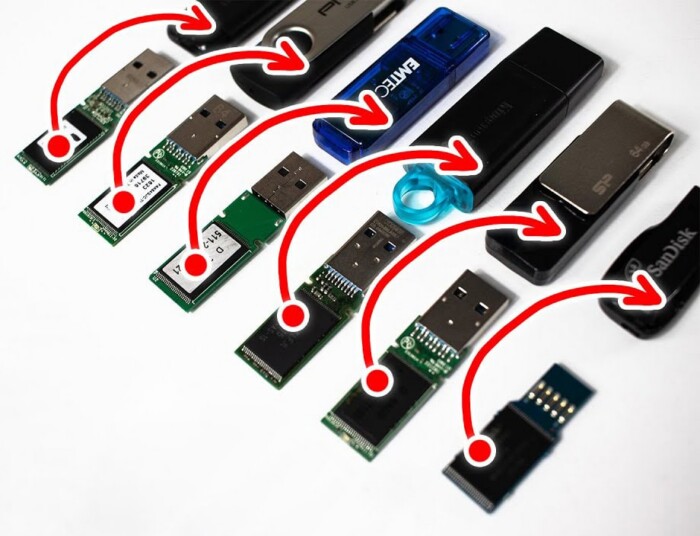
Other key components of a USB memory stick include the printed circuit board (PCB) and a protective outer casing. The PCB serves as the platform where all internal components are interconnected. The protective casing—made of plastic, metal, or rubber—shields the device against physical impacts, liquid exposure, and environmental damage. The USB connector is the physical interface that plugs into a computer, available in various standards such as Type-A and Type-C.
In conclusion, USB memory sticks leverage flash memory technology to provide safe, portable data storage. Because they contain no moving parts, they are highly resistant to shock and vibration. Combined with fast data transfer rates and plug-and-play simplicity, they have become an indispensable part of modern daily life.
B. USB Connection Standards
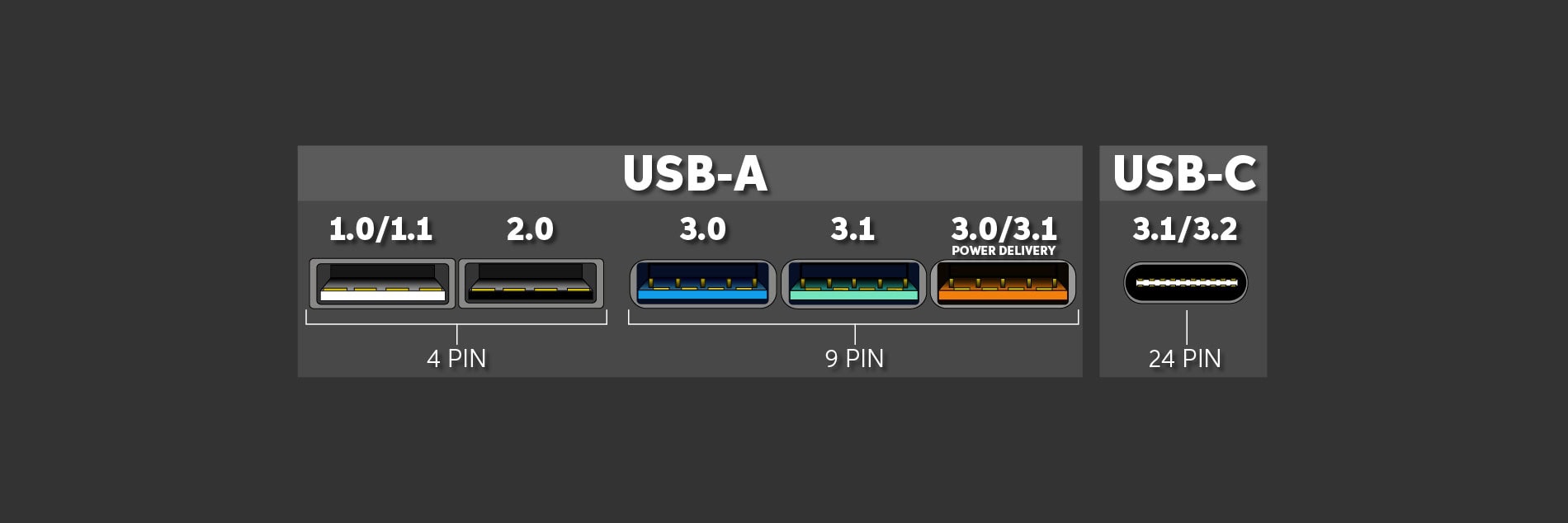
USB (Universal Serial Bus) is a connectivity standard that enables data and power transfer between devices. The types of connectors used in USB memory sticks have undergone significant changes in speed and compatibility over the years. Today, various standards exist, including USB 2.0, USB 3.0, USB 3.1, USB 3.2, and USB4. Each new version enhances user experience by delivering higher speeds and superior overall performance.
USB standards are designed to offer the most suitable solution based on user data transfer needs. While USB 2.0 is sufficient for everyday tasks, USB 3.0 and newer versions are essential for high-resolution media files, large datasets, or rapid backup workflows. Newer USB standards provide not only greater speed, but also advanced power management and versatile connectivity. Therefore, choosing the right USB memory stick depends heavily on your intended use case.
🔍 Identify Your USB Drive’s Speed by Connector Colour
| Connector Colour | USB Standard | Max. Speed | What Does It Mean? |
|---|---|---|---|
| Black | USB 2.0 | 480 Mbps | Standard speed, adequate for basic data transfer |
| Blue | USB 3.0 | 5 Gbps | Fast data transfer, better suited for large files |
| Teal / Turquoise | USB 3.1 Gen 2 | 10 Gbps | Bi-directional data transfer, significantly faster |
| Red / Orange | USB 3.2 | 20 Gbps | Professional-grade data transfer, high performance |
| Grey / Metallic / Black | USB-C (USB4) | 40 Gbps | Fastest standard available, Thunderbolt compatible |
⚡ USB Standards and Speed Comparison
| USB Standard | Release Year | Maximum Speed |
|---|---|---|
| USB 1.1 | 1998 | 12 Mbps |
| USB 2.0 | 2000 | 480 Mbps |
| USB 3.0 (3.1 Gen 1) | 2008 | 5 Gbps |
| USB 3.1 Gen 2 | 2013 | 10 Gbps |
| USB 3.2 Gen 2×2 | 2017 | 20 Gbps |
| USB4 | 2019 | 40 Gbps |
🔄 Is Your USB Memory Stick Backward Compatible?
If you have an older USB memory stick, will it work in a newer USB port? Yes, but…
- USB 3.0 memory sticks work in USB 2.0 ports, though transfer speeds drop to USB 2.0 levels.
- USB-C memory sticks can be used in USB-A ports with a simple adapter/dongle.
- USB4 drives are backward compatible with both USB 3.0 and USB 2.0 devices.
🎯 Conclusion: Which USB Memory Stick Should You Choose?
- Everyday Use: USB 2.0 or USB 3.0 will suffice. (Ideal for students and general office tasks)
- Large Files / High-Speed Data Transfer: USB 3.1 Gen 2 or USB 3.2 is recommended. (Great for photographers and video content creators)
- Maximum Performance & Future-Proofing: USB-C memory sticks supporting USB4 or Thunderbolt 3/4 are the top choice. (Designed for demanding professionals)
✅ Summary:
- The colour of a USB connector indicates its speed and standard.
- Blue and teal connectors represent higher transfer speeds.
- USB 3.0 and above are recommended for large file transfers.
- USB4 is the fastest and most modern standard available today.
3. Things to Consider When Buying USB Memory Sticks
A. Storage Capacities
Capacity is one of the most critical factors when selecting a USB memory stick. UK corporate buyers in particular need to choose the right capacity when ordering branded USB sticks for employees, business partners, or promotional merchandise campaigns. The type of data and intended use directly dictate how much storage capacity is required.
| Capacity | How Much Data Can It Hold? | Who Is It Best For? |
|---|---|---|
| 2 – 4 GB | Basic documents, text files, PDFs, small presentations (~1,000–2,000 files) | Promotional & Corporate Giveaways: Trade show giveaways, brand awareness campaigns, promotional merchandise Standard Office Use: Basic document storage, cost-effective giveaway solutions |
| 8 – 16 GB | Standard office files, presentations, light media files (~2,000–5,000 files) | HR & Training Departments: Employee training materials, onboarding documents Finance & Accounting: Reports, spreadsheet analysis, budget documentation Small Businesses: Daily file sharing and transfer |
| 32 – 64 GB | High-resolution presentations, short video clips, frequently accessed files (~10 Full HD videos) | Marketing & Sales: Client presentations, digital catalogues, promotional product videos Media & Advertising Agencies: Graphic assets, active project files Project Managers: Comprehensive documentation and analytics |
| 128 – 256 GB | Large datasets, 4K video footage, software archives (~25+ Full HD videos) | Graphic Design & Engineering: CAD files, high-resolution graphic design assets IT & Software Development: Backup files, source code repositories, test environments Healthcare & Research: Medical imaging, large-scale dataset analysis |
| 512 GB & Above | Massive datasets, large software installations, long-term archiving | Data Science & AI: Large-scale data analytics, machine learning model training sets Film & Video Production: High-resolution movie projects, feature-length video content Enterprise IT & Backups: Comprehensive enterprise data storage solutions |
B. USB Memory Stick File Systems
A file system is the set of rules that dictates how a storage device like a USB memory stick manages and organises data. When a USB memory stick is formatted with a specific file system, that system determines how files are stored, accessed, and transferred. Different operating systems support different file systems, meaning the wrong format can cause compatibility headaches.
The file system is the primary factor determining which devices and operating systems your USB memory stick will work with, as well as the types of files it can store.
Today, the four most common file systems used for USB memory sticks are:
| File System | Max. File Size | Max. Volume Size | Compatibility | Ideal Use Case |
|---|---|---|---|---|
| FAT32 | 4 GB | 2 TB | ✅ Windows ✅ macOS ✅ Linux ✅ Game Consoles ✅ Smart TVs | Legacy devices, small file transfers, universal compatibility |
| exFAT | Unlimited | 128 PB | ✅ Windows ✅ macOS ✅ Linux (some builds) ✅ Modern devices | Large file transfers, cross-platform use between OS environments |
| NTFS | 16 TB | 8 PB | ✅ Windows ❌ macOS (Read-Only) ❌ Game Consoles | Windows-centric systems, enhanced data security and encryption |
| APFS | Unlimited | Unlimited | ❌ Windows ✅ macOS (10.13+) | Optimised exclusively for macOS and Apple ecosystems |
FAT32 is the safest choice for older devices and universal compatibility, but it cannot store individual files larger than 4 GB.
exFAT offers all the benefits of FAT32 with no 4 GB file size limit, making it the best all-around option for most users.
NTFS delivers the best performance and security features for Windows, but lacks native write support on macOS and game consoles.
APFS works natively only with macOS and is optimised specifically for Apple devices.
Key Factors to Keep in Mind When Formatting Your USB Memory Stick
Determine your primary use case
If you plan to use your USB memory stick exclusively on Windows PCs, NTFS is the best choice. However, if you need to switch between different operating systems, exFAT is the ideal option.
Check your file sizes
If you need to store or transfer individual files larger than 4 GB, you must format with exFAT or NTFS.
Verify device compatibility
If you plan to plug your USB memory stick into game consoles, smart TVs, or macOS systems, opt for FAT32 or exFAT formatting.
Assess your security requirements
NTFS and APFS offer advanced security capabilities such as encryption and file permissions, though these are rarely required for standard portable USB memory sticks.
C. Counterfeit USB Memory Sticks
Promotional USB memory sticks are among the most popular corporate gifts UK companies present to clients, prospects, and staff. However, the growing prevalence of counterfeit USB memory sticks on the market puts both corporate brands and end-users at risk.
Particularly in bulk orders or shipments sourced from unverified suppliers, it is not uncommon to encounter drives where the actual capacity is significantly lower than advertised. Counterfeit promotional merchandise can tarnish a brand’s reputation and result in a negative customer experience.
In this guide, we examine how to detect counterfeit USB memory sticks and protect your corporate orders from fake hardware.
USB Memory Sticks with Spoofed Storage Capacities
Some USB memory sticks are labelled with high capacities like 32GB or 64GB, when in reality they hold only a fraction of that storage.
Unscrupulous manufacturers modify the USB drive controller chip or use software tricks to make the drive report an exaggerated capacity to a computer. For example, a USB drive with a true physical capacity of just 8GB can be manipulated to appear as a 128GB drive in your operating system. The first few gigabytes of data will write without issue, but once the real capacity limit is crossed, severe data loss occurs as files are corrupted or silently overwritten without the user realising it.
The Risk of Fake Capacity in Promotional USB Memory Sticks
Bulk orders for promotional USB memory sticks carry a higher risk of counterfeit storage capacity. If bulk-ordered flash drives are not rigorously tested, clients and employees may receive defective or spoofed products. Experiencing data loss or file corruption can severely damage your clients’ trust in your corporate brand.
At DOYUK Promotional Products, we leverage 16 years of industry expertise to import USB memory sticks from trusted partner manufacturers in China, guaranteeing full true-to-label storage capacity and premium-quality controller chips in every order.
How to Detect Counterfeit USB Memory Sticks
It is rarely possible to identify a spoofed USB memory stick by visual inspection alone. However, you can easily determine whether a drive is authentic by conducting data transfer speed and full-capacity storage tests.
First, evaluate the data transfer rate. An authentic USB memory stick delivers speeds consistent with its advertised connection standard. If a newly purchased drive operates significantly slower than normal, there is a high probability it is counterfeit. For instance, if a drive marketed as USB 3.0 transfers data at legacy USB 2.0 speeds, it likely contains counterfeit or low-grade flash chips.
Furthermore, a counterfeit USB drive’s true capacity is only exposed when you attempt to fill it completely. Although your operating system may initially read the drive as 32 GB, 64 GB, or 128 GB, its true physical flash memory may be significantly smaller. When you exceed the actual physical threshold, new files are lost, corrupted, or overwritten. Users rarely notice this deception until they try to fill the drive to capacity.
To verify actual physical capacity, you can use reliable testing utilities like H2testw or FakeFlashTest. These tools scan the entire memory block to check for capacity spoofing, helping you identify drives that pose a risk of data loss. They are free and very straightforward to use.
According to official USB specifications, average read and write speeds are as follows:
| USB Standard | Average Read Speed | Average Write Speed |
|---|---|---|
| USB 2.0 | 10-35 MB/s | 5-25 MB/s |
| USB 3.0 | 50-150 MB/s | 20-100 MB/s |
| USB 3.1 & 3.2 | 100-300 MB/s | 50-200 MB/s |
D. Look for Dual-Connector (OTG) and USB-C Drive Compatibility
Today, many modern laptops and smartphones are equipped exclusively with USB-C ports. When designing corporate gifts, selecting dual-connector (OTG) memory sticks that feature both a standard USB-A connector and a USB-C connector—or opting directly for USB-C Memory Sticks—ensures your recipients can use your branded merchandise seamlessly across all their devices without hunting for adapters.
4. Customising USB Memory Sticks for Companies and Brands
Custom Pantone Colour Matching
To help UK companies reflect their brand identities accurately, we offer custom-manufactured USB memory sticks matched precisely to your corporate Pantone colours. Leading brands rely on specific Pantone colour codes in their logos and visual guidelines to build strong brand equity. We match those exact colour specifications so your brand is represented with absolute fidelity.
The Pantone Matching System (PMS) is a global standard that guarantees colour consistency across every production run. Just as Coca-Cola Red or Starbucks Green are instantly recognisable worldwide, a bespoke USB memory stick produced in your exact brand colour will elevate your company’s visibility and prestige.
Unlike off-the-shelf standard colours, Pantone-matched USB memory sticks are custom-engineered exclusively for your organisation. This ensures your promotional merchandise stands out from competitors while maintaining full compliance with your corporate brand guidelines.

Custom Branded Logo Printing

USB memory sticks are a highly effective promotional item for boosting brand awareness and establishing a polished, professional image. At DOYUK Promotional Products, we customise your USB drives to showcase your logo and corporate identity flawlessly.
Custom logo printing is one of the most powerful ways to build brand recognition and deepen engagement with your target audience. UK businesses widely use custom promotional USB memory sticks at trade shows, corporate events, employee onboarding programmes, and client gifting campaigns. We manage every step of the printing process with meticulous care to ensure your brand looks its absolute best.
At DOYUK, we utilise advanced printing techniques on all custom promotional USB memory sticks. Through laser engraving, screen printing, and full-colour UV printing, we apply your logo cleanly and permanently—turning your USB memory sticks into long-lasting marketing tools.
We also provide digital artwork proofs before production begins, giving you a clear preview of exactly how your logo will look on the final product. This ensures your custom merchandise is manufactured to your exact specifications.
We know that aesthetic appeal and build quality are everything in promotional merchandise. That is why we deliver professional printing solutions designed to represent your brand with distinction.
For more detailed information, check out our blog post: Bespoke Branding Methods: A Guide to Printing on Promotional Merchandise »
Erasable vs. Non-Erasable Data Preloading
USB memory sticks are far more than just data storage units—they are powerful corporate communication tools that can eliminate your physical printing and catalogue costs. Instead of spending significant budgets on bulky printed brochures, we can preload your digital product catalogues, promotional videos, and price lists directly onto your promotional USB sticks. Depending on your goals, these preloaded files can be set as erasable, non-erasable, or configured to launch automatically when plugged into a computer.
🔹 Erasable Data Preloading: Recipients can use the USB memory stick like a normal storage device and delete your preloaded files whenever they choose. This option is common for general trade show giveaways or standard informational kits.
🔹 Non-Erasable Data Preloading: Preloaded files appear as a read-only partition on the drive and cannot be deleted by the user. This is ideal for product catalogues, brand guidelines, and software distribution files.
🔹 Auto-Run Data Preloading: A designated file or interactive presentation launches automatically the moment the USB memory stick is plugged into a PC. This is perfect for engaging product demos, welcome videos, or software installers.
Custom Volume Names and Drive Icons
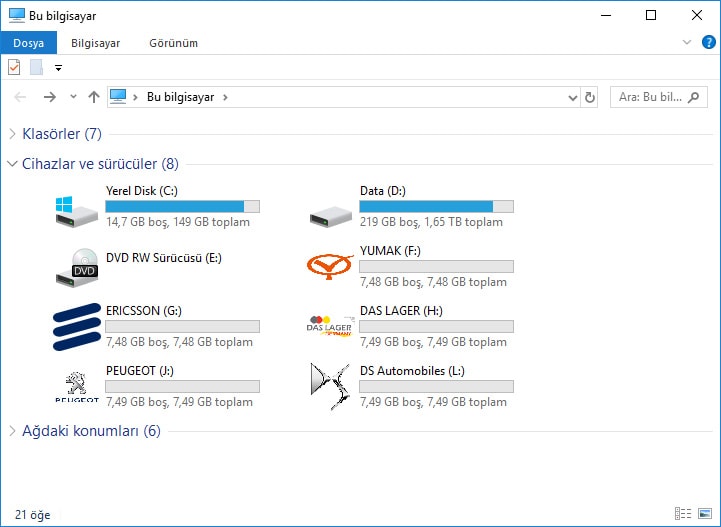
USB memory sticks aren’t just functional accessories; they can be branded touchpoints that reinforce your corporate identity. To make your USB drives truly unique, we offer custom volume name and custom drive icon customisation services.
Custom Volume Name: Your USB drive will display a custom name of your choice when inserted into a computer—such as your company name up to 12 characters long.
Custom Brand Logo Drive Icon: Instead of the generic system drive icon, we can embed your company logo or custom artwork as the default drive icon, reinforcing brand recall every time the drive is accessed.
5. Best Practices for Using USB Memory Sticks
USB memory sticks are among the most practical tools for transporting and backing up files. However, following a few key best practices is essential to avoid data loss, ensure security, and maximise transfer performance. Here is what you need to know when using USB memory sticks:
A. Is Your USB Memory Stick Compatible With Your Computer?
USB memory sticks come in various connection standards, and understanding whether your drive is compatible with your computer’s USB ports is essential for achieving optimal transfer speeds. First, identify which USB specification your memory stick supports.
If you own a USB 3.0 or faster memory stick, you must connect it to the correct port on your computer to unlock its maximum data transfer rates. Computer USB ports offer different speeds and capabilities, and the symbols printed next to them indicate which standard they support.
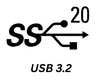
Below is a reference table showing common USB symbols found on computer ports and what they mean:
| Symbol | USB Standard | Connector Type | Maximum Speed |
|---|---|---|---|
 |
USB 2.0 | Type-A / Type-B | 480 Mbps |
 |
USB 3.0 | Type-A / Type-B | 5 Gbps |
 |
USB 3.1 Gen 1 | Type-C | 5 Gbps |
 |
USB 3.1 Gen 2 | Type-C | 10 Gbps |
 |
USB4 | Type-C | 40 Gbps |
B. How Should a USB Memory Stick Be Used?
Following basic usage guidelines will ensure your USB memory sticks remain reliable and durable over time. First, when plugging your memory stick into a computer, make sure you use the correct USB port. For example, if you have a USB 3.0 or faster drive, plug it into a blue-coloured or “SS” (SuperSpeed) labelled port on your PC to achieve maximum transfer speeds.
To prevent data corruption, always remove your USB memory stick safely. Use the “Safely Remove Hardware and Eject Media” feature in your operating system before unplugging the drive. Unplugging a drive while data is actively writing can corrupt files or permanently damage the drive’s file system. Additionally, rather than filling your drive to 100% capacity, leaving several megabytes of free space helps maintain optimal write performance.
Protecting your USB memory stick from malware is equally important. Avoid plugging your memory stick into unfamiliar or untrusted computers, and run regular antivirus scans. Unplugging the drive when not in use extends its physical lifespan and minimises exposure to security risks.
C. How to Check USB Memory Stick Specifications
You can check a USB memory stick’s storage capacity, data transfer speed, connection standard, and overall build quality using several different methods.
The exterior casing of your USB drive typically displays its storage capacity (e.g., 32GB, 64GB) and connection standard (USB 2.0, USB 3.0, USB-C). Blue or orange interior connectors generally indicate high-speed USB 3.0 or newer standards.
You can also use built-in system tools to inspect your memory stick’s technical specifications:
- Windows: Plug the drive into your PC, open “This PC,” right-click the drive, and select “Properties” to view total capacity and file system details.
- macOS: Open the “Disk Utility” app to check the USB drive’s capacity, partition layout, and file system format.
If you want deeper insights into true physical capacity, real-world read/write speeds, or internal controller chip branding, you can use specialised diagnostic tools like H2testw, CrystalDiskInfo, or USB Flash Benchmark. These utilities benchmark drive performance and verify whether the drive has a spoofed or counterfeit capacity.
6. The Future of USB Memory Sticks
USB technology has made tremendous leaps in speed, capacity, and security over the decades. Modern standards like USB4 and USB4 Version 2.0 are reshaping storage and connectivity by delivering data transfer rates up to 80 Gbps. In the near future, USB connections exceeding 100 Gbps will make instant transfers of massive files a standard reality.
USB memory sticks will evolve not only in speed and storage capacity, but also in data security. Advanced biometric authentication, hardware-level encryption, and AI-assisted data management will set new benchmarks for securing sensitive information. Furthermore, emerging wireless data transfer technologies may allow USB storage devices to transcend physical ports, offering even more flexible and user-friendly workflows.
Eco-friendly manufacturing is also playing a major role in the future of USB memory sticks. Standardising USB connectors helps reduce global e-waste, while incorporating sustainable and recycled materials minimises environmental impact across the product lifecycle.
In the years ahead, USB memory sticks will retain their position as a fast, intelligent, and secure data storage solution in the digital landscape. Driven by cutting-edge connectivity, high-capacity solid-state storage, and robust security features, USB memory sticks will remain an indispensable tool for both individual consumers and UK enterprise organisations.
7. Frequently Asked Questions
According to data from independent hardware testing platforms (such as Tom's Hardware and TechRadar), a USB memory stick's true quality is determined not by its outer casing, but by the quality of its internal NAND flash memory chips, controller, and read/write performance. Here are the leading models widely regarded as industry benchmarks in global hardware evaluations:
- SanDisk Extreme Pro (USB 3.2): Delivering solid-state drive (SSD) level read and write speeds, this model is the premier choice for content creators and performance-focused users.
- Samsung FIT Plus: With its ultra-compact (nano) design, high reliability, and excellent price-to-performance ratio, it is considered one of the best drives to leave plugged into a laptop permanently.
- Kingston DataTraveler Max: A standout high-capacity leader (up to 1 TB) that leverages modern Type-C connectivity for ultra-fast data transfers.
- Corsair Flash Voyager Series: Featuring a rugged, rubber-coated enclosure that is shock- and water-resistant, it provides maximum data protection in demanding environments.
If you plan to distribute digital brochures, product catalogues, or PDF documents at trade shows and corporate events across the UK, cost-effective 4GB or 8GB capacities are ideal. However, if you are gifting premium corporate merchandise to VIP clients, executives, or business partners, opting for 64GB or higher is recommended.
The primary difference between the two standards is data transfer speed. USB 3.0 technology transfers data roughly 10 times faster than USB 2.0. When ordering promotional merchandise, your decision should depend on budget and intended use: USB 2.0 is the most economical option for distributing standard PDF brochures at trade shows, whereas USB 3.0 is strongly recommended if you are transferring large video files or software packages to clients.
Yes. When ordering custom promotional USB memory sticks, your product catalogues, corporate presentations, or marketing videos can be preloaded as non-erasable (read-only) files. Even if recipients use the USB memory stick for their own personal storage, your preloaded brand assets cannot be deleted—turning the drive into a permanent marketing tool.


 Usb Sticks
 USB C Memory Sticks
 Card USB Sticks
 Wooden USB Sticks
 Key USB Sticks
 Pen USB Sticks
 Custom USB Sticks
 Power Banks
 Wireless Chargers
 Charging Cables
 Cell Phone Accessories
 Speakers
 Earbuds
 Mouse
Mouse Car Mouse
 Mouse Pads
 Bags
Bags Wallet & Card Holder
 Travel Accessories
 Thermos & Tumblers
 Water Bottles
 Mugs & Cups
 Glassware & Carafes
 Drinkware Accessories
 Pens
Pens Metal Barrel Pens
 Pencils
 Stylus Pens
 Writing Sets
 Notebooks
 Desktop Accessories
 Car Accessories
 Tools
Tools Keychains
 Bottle Openers

